

Think of the recycle bin on your computer LIKE a trash can, because we use it to get rid of icons, files or folders that have outlived their use for us. It will be a basic computer operation for you in time!
Just like a trash can there are times in which you will empty the recycle bin on your computer, but that will be the next lesson.
Today I'm was looking at a recipe that I placed on my desktop for a Crunchy Chinese Chicken. It was basically an shortcut I had placed on the computer desktop to remind me to make it one night for dinner.
Now I have decided I really don't need that shortcut on the computer anymore, and I want to get rid of it. I'm going to show you a couple of different ways I can get my file, folder or icon into the Recycle Bin on my computer.
Keep in mind you can't remove programs doing this. You need to go remove programs section under your control panel for that. YES you can delete the program icon, but the program will still be on the computer itself.

As you can see from my picture my Crunchy Chinese Chicken recipe is highlighted.
At this point you have a couple of different options you can use to send it to the recycle bin.
1) When I click to highlight the icon pictured I DON'T let go! I click once to highlight and HOLDING down that click I then DRAG the icon over the icon picture of the recycle bin on the desktop. Once you are OVER the icon picture of the recycle bin you let GO! It should be gone!
2) The second way is again highlight the item you wish to send to the recycle bin. Then RIGHT click. You then are given a couple of options like the picture I have supplied. You want to click the word 'delete' in this case.

You can use your left click button again to click on 'delete'.
3) The last option I find is the easiest. You highlight the icon as I mentioned before, and then you look on your keyboard to find the 'delete' button.

Like to so many other things we do on the computer you may get a message when attempting to send your item to the recycle bin. It is basically asking us ARE YOU SURE you want to send it to the recycle bin?

If you notice the right below the question it mentions the recipe I was trying to get rid of by 'FILE name'.
Its a nice double check for ourselves. I tend to go rather fast when I delete things, and on occasion I click the WRONG file, folder or icon. I don't notice I picked the wrong item until this prompt comes up with the question, and of course the NAME of the file I'm getting rid of shows up. I can say NO at that point if I made the mistake, but in this case I have chosen the correct item.
I tell the computer YES I want to send this file to the recycle bin on my computer.

You may have seen this type of icon, and it will hold videos, photos, and documents for some examples.
You can delete these files just like you have seen above for files and icons. Just keep in mind that EVERYTHING inside that file will also deleted. Its always a good idea to double click on the folder to make sure everything in the folder is something you want to get rid of. You would then CLOSE the folder, and follow either step 1, 2 or 3 above.
I find at times a visual is better at explaining things. I made a video showing the above examples regarding the computer recycle bin.
If you can't see the video Click HERE.
I hope this helps others, and you are now more comfortable with deleting files, icons, and folders with your computer recycle bin.
Don't forget to subscribe to future lessons below by typing in your email address. Keep in mind its easy to stop the lessons in the future. There is an unsubscribe link on each one you are receive.
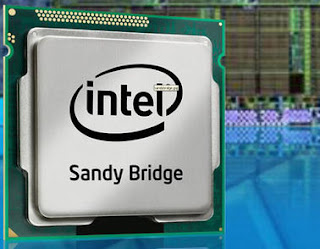 The tech world has been buzzing over Intel's second generation of processors known as "Sandy Bridge", but now they might be buzzing in a slightly different way as a major design flaw is stirring things up with not only Intel but other technology companies that have invested in devices using the processors.
 When it comes to computers, most people expect theirs to be outdated within four years or less, depending on how you treat it. When Jonathan Hefter, CEO of Neverware, a start-up company out of New York City, was asked what he thought about the issue, he laughed and said, There are two things in this world planned for obsolescence. Computers and pantyhose. They are designed for the dump."
 Sometimes companies have to make changes and sometimes those changes are big. Just ask the people at Hewlett-Packard. Only a few months out of the scandal involving Mark Hurd, HP is giving its board of directors a little bit of a makeover. HP released yesterday that they are replacing four board members as well as adding an additional seat. The four members that are being replaced are Joel Hyatt, John Joyce, Robert Ryan and Lucille Salhany.
 A Tech Travel Agent can get a

 Whether it be art museums, history museums, museums that focus on a specific event in history or some other kind, people love going to museums. However, the majority of museums are generally more fun for the elderly, buffs of the certain genre or elementary school field trips. But there is one museum that caters to a different type of visitor, a more technological visitor, the Computer History Museum, and this week they have something new for all the tech junkies out there.
 The second generation core processor family, otherwise known as the Intel Core 2011 processors, has finally arrived. There have been months of teasing accompanying on-stage demos, but the details on the Core i3, i5 and i7 processors are finally coming out and, considering the fact that there are a total of 29 new CPUs as well as a new integrated graphics options (processor graphics), there is a lot to mull over.