Monday, 18 July 2011

How-To Use The Computer Mouse

How-To Use a Computer MouseToday’s How-to Guide for the computer beginner is about the computer mouse. 


More Specifically, how you use your computer mouse.


Once upon a time in computer history everything was done by keyboard, and a mouse was unheard of.  Today most people use a click of the mouse to get their tasks done quickly, and some use a combination of keyboard shortcuts and the use of the mouse.

Lets talk MOUSE MEASUREMENT!

I have to admit at first when the mouse came out I had to get used to how to MOVE it.  I don’t know about anyone else, but when I moved it I overshot my target.   Lets say, I wanted to move 3 inches to the left.  So I would move my mouse over 3 inches.  I would then look at my monitor with curiosity, because the mouse pointer was GONE!  The mouse pointer moved WAY more than 3 inches.

How-To Use a Computer Mouse

This is an image of a computer pointer.  Most pointers are pretty similar, and yours may look like this.  What I had to figure out is that computer’s use of measurement called, DPI.  DPI stands for dots per inch.  The mouse DPI means that, the number of points in 1 cm square which are read by mouse sensor.  Some pointers are more sensitive than others.


The best way to learn about your mouse?  Is practice!  I learned very quickly that I didn’t have to move my mouse anywhere NEAR 3 inches on my mouse pad to accomplish 3 inches across on the monitor itself.  Yes, then I undershot the target at times.  Believe it or not practice is the best way to get used to the measurement.  Before you know it this will be come second nature.

laptop touchpad


Laptops to me are even MORE sensitive in my opinion.  The mouse on the laptop is called the touchpad.  Today we will be touching on right click, left click.  When using a laptop see the picture here for where that is located.


Honestly?  My daughter has a laptop that I use from time to time.  (Ahem – normally when she wants me to repair something… giggles) I have never really got used the touchpad, and I normally plug in a computer mouse in a port that are normally available for you on the laptop itself.  Everyone is different, and some people are not bothered at all by the touchpad.  Its personal preference, but for myself?  I hate the stupid touchpads.  My daughter just thinks I’m strange on that aspect, but WHATEVER as the kids say today!


The next thing that confused me is what happens when I reach the edge of the mouse pad, and I still want to move it more in one direction?  The direction doesn’t matter.  It could be left, right, top or bottom.  What do you do when you run out of mouse pad space?  You learn to lift the mouse slightly up, and literally drop it somewhere else on the mouse pad to accommodate your task.   You will notice when you lift the mouse off the mouse pad your computer pointer doesn’t move.  Once you hit the surface of the mouse pad?  The pointer moves again.


The Computer Mouse Button Basics

Right click or left click?  One click or Two?

I’m sure you have notice that most of the computer mouse’s have 2 buttons, and a wheel in the center.  Click basically refers to the noise the computer mouse makes when you push the button.


Left Click means you push the left button with your index finger normally.    This is also called the ‘select button’. 


For example, someone asks you to select an icon on your desktop.   If you look at my icon for a Chinese Chicken Salad recipe picturedHow-To Use a Computer Mouse left click you will notice the icon was highlighted when I selected it by left clicking ONCE on the icon itself.
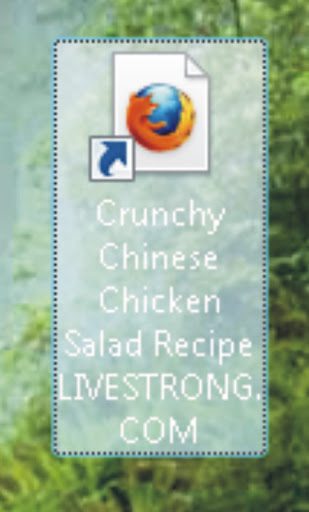
 

Notice with computer ‘lingo’ when someone asks you to ‘click’ it means use the left mouse button, and click it once.  If you get a request of ‘double click on (insert request)’ it means you will be executing something.  For example, if I wanted to VIEW my recipe pictured?  I would click twice very quickly on the icon, and the webpage would execute and open.   This is referred to as ‘double click’ or ‘double clicking’.


Right Click means you push the right button.  The right mouse button is also called the ‘menu’ button.How-To Use a Computer Mouse right click
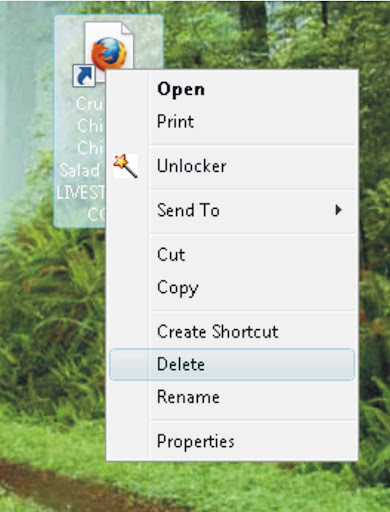
 

Lets take for example, I already have that Chinese Chicken recipe.  There is no need to keep the icon on my desktop anymore.  I want to get rid of it.    I would first ‘select’ the icon by left clicking once.  I would then right click on the highlighted chicken recipe.  A ‘menu’ of options will come up.  One of the options would be ‘delete’ as we have pictured.   You would move the mouse down (holding the right click down or moving your wheel) to the the words ‘delete’, and your selection will highlight.  You notice the word ‘delete’ is highlighted.  You will release your right click, and push your left click button once.  You will then get a message about if you are sure you want to move to your recycle bin.


Keep in mind MOST files, applications, programs or what have you give you a right click menu option.  Some do not. 


Note:  I honestly can’t think of ONE thing I have ever had to use with double click on the right button.  That is NOT to say some applications don’t have special instructions to do so.  I just never came across anything asking me to double click with your right button before.  When you are asked to double click?  Unless you are told otherwise?  Use your left button.


Also always assume you will use the left button, unless it is specified.  Right clicks are always pointed out in general.
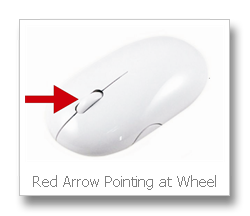
mouse center wheel

Last but NOT least is your wheel.  Some people may call it your special button, or center button.  I’m not the only one that calls it wheel, but wanted to be sure you knew the other terminology.


When the computer mouse was brand new it didn’t come with a wheel.  You would have to push both buttons down to do specials tasks like moving up and down.  If you move your wheel now you will notice that your screen rises up towards the top, or goes down depending on the direction you twirl it.


The computer mouse like most things in regard to computers has come a long way.  Some mice have more than two buttons.  If have extra buttons?  You can generally google the name of your mouse (look on the bottom of it), and the manufacturer of the mouse should have instructions for you online. 


Nowadays?  The three options – left click, right click, or wheel are the only ones mentioned most of the time.


So lets summarize everything for you!


  • A Click - Press the Left (or Right) Mouse Button once.  Right clicks will be mentioned specially.
  • A Double Click - Press the Left (or Right) Mouse Button twice, quite fast, on the same spot.   Always assume left button unless mentioned to use right button.
  • Placing the Mouse Pointer over an Icon and then clicking on it highlights that icon only.
  • Placing the Mouse Pointer over an Icon and then double clicking on it highlights and selects that icon. The second click executes the program, or what is called LAUNCH something.
  • Clicking the Right Mouse Button, whilst the mouse pointer is over a menu-item or icon, displays a Menu (if the software supports this function).
  • Wheel is also called center button, special button.


I hope I answered your questions today with today’s How-To Guide for the Computer Beginner on how to use your computer mouse.  (YES at times its referred to as mice as well, but not as often)


If you have questions or comments please feel free to use our comment section below.


Also make sure you enter your email address in the box below to subscribe.  The lessons will come to your email automatically.

 

Monday, 11 July 2011

Google+ Making Some Big Developments

Google+Just a few weeks out of the gate and Google+ is already becoming highly popular among its early adopters. It is estimated that as many as 5 million users are already a part of the service's user base with many websites opting to adopt the +1 button. However, despite all that, it is still unclear as to whether or not Google+ is here to stay or if it will fail just like Google's other attempts at social networking.

In the meantime, things are looking positive for Google+. If you have not signed up yet, or have been unable to, then you might want a little peek at what is going on inside the pages of the service. Here are five notable developments pertaining to Google+ since it launched.

Increase in Google+ Share Buttons
While Google+ may be nowhere near Facebook, it is giving Twitter a run for its money. According to different sources, there are already more Google+ Share buttons, or +1 buttons, on the internet than Twitter share plugins. In a search of the 10,000 most viewed websites, nearly 4.5% have +1 buttons while only 2.1% have Twitter buttons.

MySpace and Digg Heavy on Google+
Kevin Rose, founder of Digg, recently reported that he would be moving his domain, KevinRose.com, to his Google+ page, which will move his online activity to that network as well. In addition to Kevin Rose, MySpace co-founder Tom Anderson also has an extensive Google+ presence. Anderson's presence is so prevalent that he even used the service to write a blog post praising Facebook and CEO Mark Zuckerberg for the site's recent integration of Skype.

Invites Stabilizing
Google+ was being so inundated with invites and such that Google started a habit of randomly turning the invites feature on and off, and it was getting rather annoying. Users also griped about how they would invite friends and when those individuals finally got around to checking out the network, the invite feature would be turned off. However, all that seems to have stabilized, for now at least. The invite link has remained unchanged and working since Saturday.

Tips and Tricks from Users
Some of the more dedicated users of Google+ have already joined forces and created a tips and tricks guide for Google+ known as Google+: A Collaborative Document, which can be found on Google Docs. The document is over 40 pages long and covers everything like creative ways to use circles, tips on privacy, how to send private messages and an extensive guide for Chrome and Safari. In addition to that, the guide, which is in English, is being translated into Chinese, German and Russian.

Business Pages Coming Soon
A lot of enterprises are supposedly very anxious to get into Google+ and Google is planning on opening up its social experiment to business pages in the "near future". A lot of people are wondering if when Google+ offers business pages, if Google Offers, Google's form of Groupon and Facebook Deals, will expand into Google+ as well.

So there you have it, five of the top things that have been happening on Google+ since it launched. If you haven't gotten an invite yet, you might want to start making more friends or find some way to get on the network. Even though Google+ is in a somewhat of a trial stage, it is already gaining immense popularity.

Source: PC World - Google+: 5 Big Developments

Power Point Projectors
Most business class projectors will do a good job displaying your PowerPoint presentation. If you have a small presentation group, a 2000 lumen LCD projector will be able to produce a nice and clear picture. For larger audiences you should consider a 5000 lumen LCD projector.

Friday, 8 July 2011

Microsoft Increases Security of Outlook Hotmail Connector

Windows Live HotmailMicrosoft has recently boosted the security of a certain tool that allows Outlook users to send and receive messages via Microsoft's web-based Hotmail service. The new Outlook Hotmail Connector now supports HTTPS, a protocol which encrypts all traffic between the email client and the Windows Live Hotmail service.

Back in November of 2010, Microsoft added an all-HTTPS option to Hotmail, due in part as a reaction to Firesheep, a Firefox add-on released the month before which allowed anybody to scan an unsecured WiFi network and hijack other people's access to Facebook, Twitter and a whole bunch of other websites.

The update to the Outlook Hotmail Connector that was released this week is simply a follow-up to Microsoft's move back in 2010. According to Microsoft's Outlook team, "Using a connection with HTTPS helps you be even more confident that your account is safer from hijackers, and that your private information remains private."

This new tool encrypts communication between Outlook and the Windows Live email, calendar and contact services. Google's Gmail beat out Hotmail to the HTTPS by more than a few years. Gmail users have had this option of encrypting all Gmail traffic since 2008. However, in mid-January of 2010 Google enabled HTTPS by default on the same day it accused hackers from China of breaking into its systems and trying to access the Gmail accounts of human rights activists who lived in the country at the time.

In addition to this, Microsoft has also updated the consumer-grade Windows Live Mail to support HTTPS as well. Unlike its Outlook Express predecessor, which just so happened to be bundled with Windows XP, Windows Live Mail is an optional download for Windows Vista and Windows 7. Outlook Hotmail Connector can be downloaded in 32-bit or 64-bit versions for Outlook 2003, 2007 and 2010 on Windows. There is no similar tool for outlook 2011, which was included with Office for Mac 2011.

The Windows Live Essentials update, which includes the HTTPS-enabled Windows Live Mail, is available here or on Microsoft's download website as well.

Source: Computer World - Microsoft beefs up Outlook-to-Hotmail security

A Tech Travel Agent can get a laptop rental to you within 24 business hours in over 1000 cities worldwide. Call 800-736-8772


We have 3987 Installers, Technicians and Engineers stationed in nearly 1000 locations worldwide to serve you.

Monday, 4 July 2011

Internet Explorer Delete Browsing History Menu

Delete-Browsing-HistoryToday’s How-To Guide for the Computer Beginner we will go into more detail about Internet Explorer’s:

Delete Browsing History Tab.


Keep in mind at times people do shorten the name Internet Explorer. 

Most people will refer to this as IE. 

It is basically just the initials of
Internet Explorer.

If you come across IE9.  It means Internet Explorer Version 9.   The number represents the version of IE or Internet Explorer.

So Today’s lesson could also be termed as, “

IE delete browsing history’

tab.

We have touched on the Delete Browsing History tab in a previous article about the computer cache (pronounced CASH).

I wanted to go down the list for each section so you were comfortable knowing what each section of the delete browsing history does.

1. On the Tools menu, click Internet Options.
Clear-Cache-Internet-Explorer


Internet-Options-Screen-Shot

The Internet Options box should open to the General tab.

The top section is the home page.

The Second - Browsing History section is what we will be dealing with today.


I have been also asked how to:

delete browsing history on exit


Notice in the Browsing History section you hadelete-browsing-history-on-exitve a box you can check mark above.  This will delete your internet history automatically.  The internet history is basically the url’s that you have visited.  Computer Hope as options for older browsers. 


Back to the Browsing History section:
If you hit the ‘delete’ button your Delete Browsing History menu will come up.

At the Top of the menu you will notice is its called, Delete Browsing History.

Lets break this menu down by section.  If you want to ‘choose’ a section? 

Click on the square next to the title in order to make an “checPreserve-Favorites-website-datak mark” there.  See my example below where I checked “Preserve favorites website data” under the delete browsing history menu.


delete-browsing-history-menu

Preserve Favorites Website Data


If you have saved any websites as your favorites? Option one will save the cache and the cookies, etc on those sites. 

This cache option allows you to leave those sites alone.  It’s a nice feature they have added to Internet Explorer 9.


What is your favorites?


favorites-IE

This is the section of your web browser at the top that allows you to save favorite websites – LIKE THIS ONE! (giggles)

Try it!  Click on “Favorites”, and then click to “Add to Favorites”.

We will go into the Favorites Section more later.


I will give you an example of a favorite that I go to regularly.  I have boards that I go to that have discussions about faith.  If I click the preserve favorite website data, because my faith board is under my ‘favorites’ section that I have pictured above?  It will load the page faster, and remember my login information.

So:
Preserve-Favorites-Website-Data
is to ensure that this data is not deleted, a check mark must be placed next to the Preserve Favorites website data option. 

Temporary Internet Files


Temporary-Internet-Files

The second option in this menu deals with Temporary Internet Files.   IE9 stores images from the websites and media files of Web pages that you have visited in an effort to reduce load time on your next visit to that page.

Since you have already saved your favorite websites you will delete all the images, etc from other websites that you have visited, and will free up some space by deleting the temporary files. 

We all go traveling around the internet, and each page is pretty much saved.  You don’t need them all, and this basically throws out the trash.

Cookies


IE-Cookies

Tech FAQ’s Describes web cookies:
A browser cookie is a small piece of information sent by a web server to a web browser to be stored for future use. The data in the browser cookie will be sent back to the web server whenever the browser reconnects to the web site.
Cookies are commonly used to store user preference information, such as web site options. Cookies are also used to store shopping cart contents. The most security-relevant use of browser cookies is when they are used to store authentication data, such as user names and passwords.
I normally check this one myself

History


IE-History-Delete

The fourth section of the Delete Browsing History menu deals with History. IE9 records and stores a list of all websites that you visit.

The others sections dealt with data, cookies, images, files, etc.  This basically deals with the URL addresses stored.

Download History


IE-Download-history

Any time you download a file through your browser, IE9 keeps a record of it including its filename as well as the date and time which it was downloaded.

Keep in mind this does NOT delete the download itself.  Just the list.  Some people prefer to keep this, and others don’t.

Form Data


Form-Data

The sixth option deals with Form data. Any time you enter information into a form on a website, IE9 stores some of that data. 

Pictured here I was going to comment on a blog or website.  The first field asked me for my name.  I typed in H, and the formForm-Data data that was saved in Internet Explorer Browser came up with Hannah Thomas.  It retrieved this from a comment box I had filled out on another site. 

Although this can be very convenient, it can also become an obvious privacy issue.

Passwords

Store-Passwords

The seventh option deals with Passwords. When entering a password on a Web page for something such as your email login, IE9 will usually ask if you would like for the password to be remembered.

do-you-want-to-save-passwords

If you choose for the password to be remembered, it will be stored by the browser and then prepopulated the next time you visit that Web page.  It basically fills in the blanks next time you visit the website.

I will admit some sites I will allow this, and others I won’t.  My example again is a faith board I go to often.  I will save the password in the browser.  If I’m paying a bill online?  I don’t want that type of information in the browser.


I personally don’t checkmark this section for deletion, but it can be useful for others.  If you wish all your saved passwords to be deleted you would check this section.

ActiveX Filtering and Tracking Protection Data


activex-filtering-and-tracking-protection

The eighth and final option deals with InPrivate Filtering data. This data is stored as a result of the InPrivate Filtering feature, which detects where websites may be automatically sharing details about your visit.

An example of this would be code that could tell a site owner about other sites that you have recently visited.

Online Tech Tips has a good article on InPrivate Filtering data worth checking out.  It goes into more detail. 

When you have made your selections you will click the delete button at the very bottom of the Delete Browsing History menu.  If you want to get out of this menu?  Click cancel.

With older versions of Internet Explorer:

From the Tools menu in the upper right, select Internet Options.
  1. Under "Browsing history", click Delete... .
  2. To delete your cache, click Delete files... . To delete your cookies, click Delete cookies... .
    To delete your history, click Delete history... .
  3. Click Close, and then click OK to exit.

I hope today’s How-To Guide for the Computer Beginner on the Delete Browsing History Menu was helpful. 

If you have any questions please feel free to leave a comment.

Don’t forget to subscribe by leaving your email address in the section provided so you don’t miss out on future lessons!


Thursday, 30 June 2011

Insane Demand Causes Google to Shut Down Invite Process for Google+

Google+Just a single day after Google unveiled Google+, the company's brand new social networking service, Google decided it would be a good idea to open up the invitation process late Wednesday afternoon to all those fortunate enough to have already been invited to participate in the service.

Before, the keys to Google+ were only given to those very select few who were fortunate enough to be allowed in at launch. So naturally an invite was a precious and prized commodity. Google has stressed that Google+ is in its very early stages though whatever it was that Google was aiming for with its field trial must have been pretty darn successful. The reason I say that is because every single person that was invited to the service is now able to invite other people in as well.

But that wasn't all, the people who were invited by the initial users were able to invite friends of their own too. Even better was the fact that people writing about the decision to open up the invitation process were suddenly struck with a lot of popularity amongst readers. MG Siegler from TechCrunch wrote on his Google+ page on his own story that, "I'm not sure any TechCrunch post has gotten comments at such a fast rate."

This amount of attention seems like it must have been a bit more than Google had asked for. After nearly six hours, Google shut the invitation process down over what Senior Vice President of Engineering at Google Vic Gundotra called "insane demand". Gundotra posted on his Google+ page late on Wednesday night, "We need to do this carefully and in a controlled way." Gundotra did not specify when the invite functionality would be back up and running.

Source: PC World - Google+ Invite Process Shut Down Amid 'Insane Demand'


The Security Camera Blog


Get a regular infusion of new security camera technology information, video and news. Easy to subscribe in a reader or by email.


We help you stay in touch with the latest security camera features.

Wednesday, 29 June 2011

How-To Restore a Deleted Recycle Bin

My Recycle bin is GONE
My Recycle bin is GONE!
My Recycle Bin is GONE!


I accidentally deleted recycle bin!

Where is the recycle bin?  Its not on my DESKTOP!

My windows recycle bin is GONE!


I have done that myself, and don’t worry we will get it back!

Today’s How-To Guide for the Computer beginner is: how to restore recycle bin, because you might have deleted the recycle bin by accident!


image
Dumb Delete Option for Recycle Bin

Delete Recycle Bin


If you look at the picture you can see that right clicking on the recycle bin gives you an option to delete.

Don’t ask me why they came up with this bright idea, but they did. Confused smile

The first time I deleted the recycle bin I never even caught the ‘delete’ option that is pictured.  AFTER I was finished freaking out I had to learn How to recover the recycling bin.  How frustrating!

How-To Recover the Windows Recycle Bin

First thing we want to do is RIGHTclick on some available space on your desktop.   Then we need to click on ‘personalize’.

Right Click Personalize


The control panel will open on the personalization settings.  In the upper left hand corner you should see, ‘change desktop icons’ in the blue section.

Once you click Change Desktop Icons you are almost done!  You will see the option to restore that recycle bin very quickly.

As you can see there are a couple of different options for you right on TOP!  You can click to make an X in the box next to the word ‘recycle bin’. 
image

The X should be missing next to the recycle bin now, and placing the X in the box restores the recycle bin.    If you look towards the bottom of the desktop icon settings scene make sure your ‘allow themes to change desktop icons’ is checked if available.

Look to the bottom of this screen, and then click the button ‘apply’ button.  At times you do need to push ‘ok’ as well, and other times you don’t.

I notice at times screens may flicker for a minute, but look to see if your deleted recycle bin is back!  Flickering doesn’t always happen when we restore the recycle bin, but I wanted to mention it in case it did happened.

Now you don’t have to be like I was and freaking out, ‘Where is my recycle bin?  MY WINDOWS RECYCLE IS GONE!”

I hope our How-To Restore our Recycle bin lesson as helpful! 

If you have any questions or comments feel free to leave me a comment here.

Don’t forget to place your email address in the subscribe box so you can have more lessons sent your email when they come out!

Hope you come back for another How-To Guide for the Computer Beginner lesson!


Friday, 24 June 2011

What is a USB Flash Drive?

what is a UBS flash drive
Picture of a common USB Flash Drive
Today’s lesson for the computer beginner is my attempt to explain the USB Flash drive.

What is a USB Flash Drive?  Its is a Data storage device that you can take with you!

USB stands for Universal Serial Bus.

When I was in college all we had to save our work on was a 5 1/4 inch floppy disk.  In time we had used a 3.5 inch floppy disk which were nicer.  Next came the CD Rom, and now we have the USB Flash Drive.

With each generation of storage devices that we have had they got more durable, had more storage space, and are easier to everyone to use.  USB Flash drives can come in all colors, spaces, and even sizes.

When you create a file on your computer?  It could be a letter, presentation, picture, etc you can save that on your hard drive. The hard drive, disk drive or in most cases is also called your C drive.  YES they can all mean the same thing.

How often do we hear people mention we need to ‘back up’ our files?  Today people can use the USB drive for that purpose, and many MANY others!

USB Flash Drives are smaller, faster, have thousands of times more capacity, and are more durable and reliable because of their lack of moving parts. 

Nothing moves mechanically in a flash drive; the term drive persists because computers read and write flash-drive data using the same system commands as for a mechanical disk drive (floppy disk, CD rom), with the storage appearing to the computer operating system as just another drive (Floppy or CD).

Plug your USB Flash into USB Port

If you look at the first picture of the USB Flash drive I used something should look familiar! 

USB Flash drives you would plug into your USB port on your computer. 

What do you use a flash drive or thumb drive for?


There are MANY uses, but I will give you some general ideas today.

The reason people like the USB flash drives or thumb drives is because they transfer your files faster, and have a larger capacity for storage.  I have read (have never used the USB flash drive this way) you can save information from game systems such as Xbox and Playstation on these.  Soon they say some mobile phones will have this capability.

What is neat about that?  Your children have their latest game setting saved on their Xbox, and you announce that you are going to a family event.  The kids can save their game settings on the USB flash drive, and bring it with them.  Once you get to the families house they plug in their information into the families Xbox, and now they can play with all their cousins!

If you keep your eyes open you tend to see these near almost every checkout in stores today. 

Here is a famous example of a USB Flash drive!

A recent familiar use of the flash drive or thumb drive was when they found Bin Laden this year.

When Osama Bin Laden was found and killed the news reports stated they found hundreds of ‘thumb drives’.  This is another name for them. 

It was reported that he did not have internet access, and yet we hear about him sending emails.  How is that possible? 

He wrote the emails on his computer, and saved them to his Flash Drive.  Someone took those flash drives to a location where internet access was possible.  They copied the emails into an email program, and they were sent off.  The emails he received from people were copied onto the flash drive (thumb drive), and brought back to him to read on his computer.

All his correspondence, files, plans and contacts were all saved for reference on thumb drives (flash drives).   Think about that for a minute!  If he knew they were coming to get him?  He would just grab his thumb drives when he left.  They would find his computer, but all his files were with him.  Its easier to take the flash drives compared to carrying around your computer when your are trying to escape! 

Bin Laden would NOT keep copies of his files on the computer directly EVER, but used his flash drives instead.  If they found his computer?  Big deal.  All the important stuff is with him.  Since they found the important stuff?  THAT is why they were excited!

I hope I helped explain to you what a USB flash drive is.  Keep in mind this is also called a thumb drive as well.  Bye for now from How-to Guide for Computer Beginners!