Tuesday, 26 July 2011

How-To Close a Browser Window

Today’s How-to Guide for the Computer Beginner is going to cover:  How-to Close a browser window

If you look at the top right hand side of your web browser?  You will see something similar to this: web browser buttons_thumb

One way to close a web browser window is clicking on the “x”.  Your browser windows should close.  click-x-to-close-browser

browser-file-exit-close


The second way is look to the top, and find the menu bar. You should see ‘file’ (click on it), and as I have pictured you can go all the way to the bottom to ‘exit’.  You would click again on EXIT this time.  This also would close your browser window.


Those two choices maybe the ones you use the most.  Now we will look at different circumstances you may run into as well.

Newer web browsers allow you to open more than one tab in your browser window.  In my picture below I have three tabs open.  I have one for Google, One for Yahoo, and the third is for Bing.

Now I have decided I’m finished with all these web pages, and wish to exit them.  I would click on the X like I did above on the browser window.    click-x-to-close-browser

In this circumstance I would be receiving a warning. 
close-3-browser-tabs
This message is from Mozilla Foxfire.  Its warning me that I’m not only closing the browser window that I’m viewing but closing all the tabs I had opened in this browser window. 

I have two choices.  I can click ‘close tabs’ or ‘cancel’. 

If I click ‘close tabs’ all three: Google, Yahoo, and Bing will close all at once. 
If that is what I want to do – GREAT!

What if I forgot that I had three tabs open, and I just wanted to close ‘google’ alone?  I would click the cancel option.  The browser window would look just like it was before I clicked the X menu option. 

Okay, so how to you close just the one tab for google?

close-one-tab
If you glance at each tab you have open in your browser window you will notice another X for close.  It may not be ‘red’ this time, but it will close the tab.  Notice that all the tabs have this X handy for you to use.


If you don’t like these reminders you can remove the X by clicking in the box next to message, “Warn me when I attempt to close multiple tabs’.
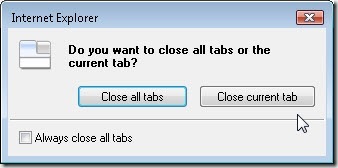
ie-close-all-tabs
This is a similar message that you would receive from Internet Explore (IE).

I can either close the current tab I’m viewing, or close them all.



select-bing-to-closeAs you can see in IE you also have the option of just closing one tab like we did in Firefox above.


Another circumstance you may run into is wanting to close browser windows that have been minimized, and are in your taskbar.  Closing these Browser windows in Windows 7 is a bit different, and we will show that to you last.

This is scenario I have Mozilla Firefox sites minimized, and I have them pictured below.

open-browser
When I hover (don’t click) like in our picture you will see that I have three browser windows minimized on my task bar.


foxfire-3-windows-mininizedIf you look closely at my foxfire logo in the task bar you will see a down arrow.  If you see this down arrow it means I have MORE than one browser window minimized .   If I had just ONE window minimized no arrow would be present.

open-web-browser
If we click once on our browser icon in the task bar you will see a preview titles to remind you of what web pages you choose to place there.

hover-over-browser-icon
Without clicking you can again hover over to get more information, and if you wish to bring the browser window back up on your desktop then you would click on it.  This at times is referred to as restore the window.

What if I wanted to get exit the window,  because I decided I won’t use it again?
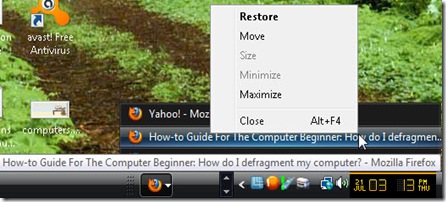
close-mininized-window

While you are hovering over it – right click once.

You have a ‘restore’ choice which would open up the window on your desktop, or you have the close option.  In our case?  Click the CLOSE!


taskbar
Here is a picture of another task bar, and you can see the person has a number of different programs open at once.  Restoring those back to the desktop would be a matter of just clicking on one of the rectangles on this task bar.  If they wanted to close them?  Right click, and hit close just like we did above.

Windows 7 (Seven) changed up the task bar even more, and how to handle the web browser windows.

window-7-taskbar

When you hover over the IE (internet explorer) icon as pictured?  You can actually see the page title and a screenshot of the different browser windows you have minimized.  Move your mouse over a thumbnail image (again no clicking) to preview the window full screen, and click it to go open the window.

ie
Notice the browser window icon this time.  There is no arrow like in the past, but it reminds me separate sheets of paper.  If you look real close you will see three sheets, and these represent the three choices.
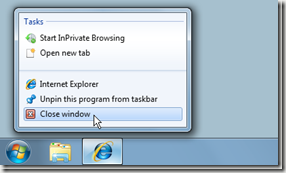
close-window
What if you decide you wish to close the window in the task bar? 

We will again hover over (remember that means no clicking yet) the IE (Internet Explorer) icon pictured.  Then you need to right click on your mouse.  Notice the picture.  You have the option to click on ‘close window’.  You would click on that choice to close the web browser.
close-bing

Remember the tabs above?
When you hoover all your windows will show as we mentioned.  We want to get rid of bing this time.  Move your mouse over the bing window, and a red X will appear.  Click that read X, and it will close.

If you haven’t noticed closing programs works much the same way.

If something is not clear on our How-To Guide for the Computer Beginner on How to close the browser?  Please feel free to leave a comment or question in the spot supplied for you.

Don’t forget to leave your email to subscribe to future lessons.  They will be emailed directed to you.


Monday, 25 July 2011

What is a web browser? Browser window?

what-is-a-browser When I speak to my friends about computers I sometime forget they may not know the basic terms, since  they are a computer beginner after all.

I get these confused looks and questions like:

What a browser?
What is a web browser?

What is a browser window?

I think to myself, “Oh boy!  I guess that would help huh?”  Dahhhhh to me!

Today’s How-to Guide for the Computer Beginner is, “What is a browser or Web Browser?”  We will also touch on Browser windows.

What is a Browser?  What is a web browser?


Browser is a short name for web browser.   YEP!  They are the same thing.

A web browser is basically a software application (or program) that allows you to get onto the internet, and view web pages.

I have chosen three popular web browsers, and have shown pictures of their icons.

Internet-Explorer
  You may have seen this on your desktop, and this is a web browser called Internet Explorer.  It is also called, IE for short.


Mozilla-Firefox
This is another popular web Brower.  Its called Mozilla Foxfire.  It also has a nickname, “FoxFire” for short.


google-chrome
Lastly, this is called Google Chrome, or just Chrome for short.


At this point and time these three seem to be the most talked about.  There are others.    If you wish to open a browser?  You would click on one of icons, and normally you would have one similar to ones I have picture above. 

You had to click one of these (IE, Foxfire, Chrome) icons to get to our How-To Guide for the Computer beginner page that you are viewing now.

Normally, the next question I’m asked is which one is better.  Honestly?  You will get as many opinions as there are web browsers.  I think it is more personal preference.  Internet Explorer (IE) was my first browser, and now I tend to use Mozilla Foxfire.   I actually have them both on my desktop now. 

For whatever reason there are certain websites I can view better in one browser better than the other. 

When you hear people speak about browser compatibility?  That is one of the aspects they are talking about.  There will be some website you come to, and they will tell you right away to view this in IE, Foxfire, or Chrome.  They are telling you their website is compatible with that web browser.

Another example, would be say you pick IE and it has a heck of time loading in order to see the words and pictures – or just outright refuses to show anything.  I would turn around and open this page in Firefox, and it loads right away. 

Keep in mind:  When you have never been to a website before?  Its normal for the page to take while to load so you can see it.


Other times certain parts of the webpage will never be seen in one web browser, but you can see everything on another.  Lets look at an example of what I’m talking about.

what-is-a-web-browser
what-is-a-browser

These two pictures are an example of two different web browsers viewing the same web page. 

As you can tell browser number one is more compatible to view this web page than the second one.  The second browser is missing huge chucks of information.

What is a browser window?


browser-windowWhen you click one of the icons above?  You are launched into a browser window.    Matter of fact you are viewing our blog in a browser window.

In beginner terms? A browser window is a tool used to view websites on the internet. It acts as a "window" to the world wide web. (otherwise known as the internet).

So when you open your browser by clicking on one of the icons I mentioned?  You will be viewing the internet through a browser window.


Make sense?

I hope you understood my How-To Guide For the Computer beginner today on Web Browser, and Browser windows.

If you have comments or question please feel free to leave a comment in our section provided.

Also don’t forget to leave your email in our subscription to have future lessons sent directly to your email.

Friday, 22 July 2011

Google Discontinuing Toolbar Support for Mozilla Firefox

Mozilla FirefoxThings between Firefox and Google have taken a turn for the awkward. Since its inception, Mozilla has always received a lot of funding from the search giant. However, analysts have been expecting Google to drop out of that role ever since the company launched its very own web browser, Google Chrome. Ever since Chrome was released and those analysts made their predictions, they have all been sorely disappointed, until now.
Google has just announced that the company will no longer include support for new versions of Firefox with its Google Toolbar. Many analysts' predictions have finally come true though this may spark another prediction, one that announcse that a new browser war has just been started.

However, that seems highly unlikely. The main reason Google is dropping support is due to the fact that Firefox already offers a lot of the benefits that the Google Toolbar offers, whether it be natively or through the immense amount of add-ons that Firefox offers.

Google is being very courteous about the dropping of support. The company will continue to offer Google Toolbar for older versions of Firefox and even created a webpage that was designed to help former users of Google Toolbar find similar functions in Firefox 5 and later versions yet to come. The Google Toolbar Blog has the full announcement if you are interested.

What do you think? Are you upset about Google dropping Google Toolbar support on later versions of Firefox? Or does the browser have enough of its own features to fill the gap? If you really can't live without the Google Toolbar, you can always switch to Google Chrome. It works well enough for me to work on every day.

Source: MaximumPC - Google Dumps Toolbar Support For Firefox

A Copier Rental is a quick way to mass produce important documents for potential customers at an event or conference. Renting office equipment is simple and easy and it can also save you loads of time and money. Rentacomputer.com has been offering copier rentals to more than 1000 cities worldwide for over 20 years.

Thursday, 21 July 2011

How-To change mouse cursor or pointer

mouse-properties-screen
In the last couple of lessons we have spoken about the mouse options.  We started with right click, left click, double click, etc.

The last time in our tutorial I spoke about the mouse pointers, or computer pointers.

Today’s How-To Guide for the Computer Beginner lesson is normally asked one of these ways:

How do you change the mouse cursor?

How to change your computer cursor?

How to change the computer pointer?


As you can see people call it different things.  I normally refer to it as a computer pointer.

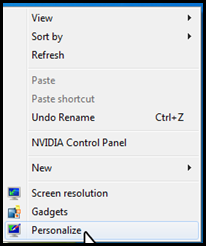
desktop-to-personalize
Today, I will start with the Windows 7 and Vista, and then Windows XP.  I have had a hard time finding good documentation on older operating systems for this.  I will update later if I found sites for you.

For Windows Vista or Windows 7 you have two ways of doing this.

Find an open space on your desktop, and right click and you will see a menu looking similar to this.   You want to move down to ‘personalize’ to open the next menu. 

We want to go down the list of options until we find ‘mouse pointers’.  Click the blue letters that say ‘mouse pointers’ to open the next menu choice.

mouse-pointers

mouse-properties-selection-screen
Towards the top you will see a tab called ‘pointers’.  I have used a green arrow to point to where I’m speaking about.

The Scheme can be chosen from clicking on the drop down list.  Please see blue arrow this time.  Scroll down the list to pick a theme that you may think you will like.

You can preview what your mouse pointers or mouse cursors will look like before you make your selection.  You see the preview in the section I highlighted in yellow.

You can preview as many as you wish, but when you have settled on the one you like?  Make sure you click the ‘ok’ button at the bottom that I pointed to with a purple arrow.

If you don’t want to change anything?  Click cancel, or the red X at the top to close the menu.

That was easy wasn’t it?  You can change your theme as much as you like now!

start-to-control-panel

I consider that the ‘fast way’ to change the mouse cursor or computer pointer.

The second way?  Click Start Button, and the move over to click on control panel.

control-panel-homeIn the top left hand corner of the ‘control panel’ screen make sure you are on the ‘control panel home’, and not the classic view. 

You can tell by the dot I circled in the picture.  If your dot is next to ‘classic view’ click on ‘control panel home’ white letters to change it.  This way the rest of my instructions will make sense to you.


In the control panel look for the follow sections:

appearance-and-personalizationLook for the ‘appearance and personalization’ section, and click on the green letters that say ‘appearance and personalization’.


personalization
Next look for the section called ‘Personalization’, and click on its green letters ‘personalization’.


mouse-pointers

You will notice the same ‘blue letter’ mouse pointer section we spoke about above is present. 

Just follow the same instructions as we spoke about above after clicking on the blue letters that say, ‘mouse pointers’

Changing the mouse cursors in XP is similar.


start-to-control-panel-xp
We will go to the start button to control panel,

xp-printers-and-other-hardware

and then ‘printers and other hardware’. We are NOT in the classic view for this lesson.


XP-printers-and-other-hardware-mouse

You will click on MOUSE, and then your mouse properties window will open.


Look for Pointers.   You may have noticed this is similar to Windows Vista or Windows 7.   You have the scheme drop down list to make yxp-mouse-properties-pointersour choice, and also your preview section.  The Preview you would just scroll down to see.  Make your choice, and click OK at the bottom once again.  Tech Recipes has additional comments.


At this point I really have not found any reliable information on how to do this with older operating systems.  I will update this lesson if I do find them.

That is our How-To Lesson for the Computer Beginner on how do you change the mouse cursor, computer cursor, or computer pointer.  YES take your pick as to what you want to call them!

If you have any questions or comments – or if something isn’t clear?  Please leave a comment in the section provided for you.

Lastly, don’t forget to subscribe for future lessons to be sent directly to your email box.  You can do this by typing in your email in our subscribe section below.


Rent Computer Peripherals From Rentacomputer.com

Sometimes you only need computer technology for a short time, perhaps to augment your business's computing capacity during peak business seasons. Purchasing technology to meet such a temporary need involves taking on unnecessary expenditures, and inevitably leaves you or your business with a lot of superfluous technology after the need is fulfilled. So renting computer technology makes perfect sense for such ephemeral needs.

Not only can Rentacomputer.com procure any computer rental you might need, but they can also configure temporary solutions and technology packages that include computer peripherals as well.

What are Computer Peripheral Rentals?

Computer Peripheral Rentals From Rentacomputer.com
Computer peripherals are any accessory items that you might want or need with your computer rental, whether you are renting a laptop, desktop, or tablet computer. Having the right accessory items with your rental can be crucial, and it is often the case that renters do not already have many of the accessories they might need to make their rental function in the capacity that they need it to.

Gigabit Switches

If your you Computer Rental consists of several or more computers that will be operated simultaneously by various users, then you might very well need a gigabit switch. This will allow you to connect your laptop rentals to one LAN source, which is invaluable if you need to have multiple users simultaneously connecting to the web. Our Tech Travel Agents typically recommend either an 8 Port 100/1000 Gigabit Switch or a 24 Port 100/1000 Gigabit Switch, depending on how many computers you are renting.

Wireless Routers

Wireless Routers are also a very important peripheral if you need to wirelessly connect your Computer Rental. These especially become valuable when you are putting together interactive trade show booths, or require event planners and maintenance personnel to stay connected via laptops or tablet computers. Wireless routers are also invaluable if you are setting up a temporary office. Our agents usually recommend a Cisco/Linksys 4 Port Wireless Router.

Computer Cable Locks

Computer Cable Lock Rentals
Security can often be an issue, especially if you are setting up a booth or kiosk with your computer rentals, where a lot of traffic will be passing by. You can ease your worries about the security of your rentals by adding cable locks to your rental configuration, so that you can lock down each unit and protect against theft.

Conference Phones

Conference Phone Rentals
A very handy accessory to have when you need to keep in touch with multiple collaborators is a conference phone, whereby you can speak with the people you need to speak with all at once and expedite project logistics. Our Tech Travel Agents recommend getting a Polycom Soundstation for your conference speakerphone rental.

Wireless Presentation Mouse & Remotes

If you are getting a Laptop Rental for presentation purposes, then you should also consider getting a wireless mouse or remote added to your rental configuration. With these accessories you can have a lot more freedom while giving your presentation, instead of being tied down to wherever your computer is stationed.

Put your eye on the problem with Camera Security Now. Installing security cameras since 1999. We install in the US and we can help you do it yourself.


Call us toll free 877-422-1907 between 8am EST and 5pm PST M-F. Talk to an expert about your serious security camera needs.


Tuesday, 19 July 2011

Names for mouse cursors, pointers or arrows

POINTERS
I’m sure most have noticed some of the images pictured in the oval.  These are computer pointers.

  I have also heard it referred to as computer arrow, or computer cursor.


Today’s How-to Guide for the Computer Beginner is about

computer pointers.


computer pointer
This is just a standard computer pointer.  There are variety of different looks to computer pointers, and you can even download different ones online if you wish.   When you see this standard computer pointer everything would seem fine.  It normally appears on your desktop once you computer is done loading itself completely.  This pointer is what you use to select and execute files, programs, etc.

Note:  Make sure you know the dangers of downloading  pointers, and how to keep yourself safe before you do!

Question Mark Pointer


computer mouse arrowYou notice the question mark next to the computer pointer?  In some screens either in a computer program or if you are searching the internet you will notice some symbols in the upper right hand screen (normally).    The question mark below would be similar to what you would see.question mark iconAt times it could be as obvious as a question mark, and normally it would be near the X that means close the screen.  close screen icon 

Other times your pointer will change to one with a question mark if the site has additional information, or goes into more detail.  Its basically prompting you that they have additional information about the subject at hand if you wish to see it.

Hour Glass Pointer

Next you may have an hourglass next to your computer pointer, at times just an hour glass, or the circle that we have pictured today.  This is called a computer pointing devicebackground busy pointer or cursor.  It is telling you that the computer is running some task or job at the present time. 

computer pointing device
You may notice this pointer when you first turn on your computer, and the machine is loading all the programs before you can do anything.  I notice I get a similar type of message when I print PDF forms online for grocery rebates.    The computer is basically asking you to wait until it done before you do anything else. 

At times YES you can do something else, but your computer maybe very slow or the program can crash (stop working).

There are certain times in which you would only see an hour glass, and you will not be able to do anything else on the computer until it has finished its job.  You can think of it as, ‘Please wait.  We only have resources for this one job right now!”

I-Beam Pointer

image or i-beam pointer Yes it almost looks like an letter I for ice cream doesn’t it? 

You may not have noticed this text pointer, but we use it all the time.  This is also called a ‘i-beam’ pointer.  Did you ever notice when you are typing a word into a search engine, or typing a web address?  You have a blinking text pointer.    I don’t notice it all that often, because its small and blinks.  It just looks like a line most of the time to me. 

You will see it on the blinking in your address bar for this blog if you place your cursor click there.
address bar

subscribe by email
You will see if you enter your email address in our subscription box to received future lessons by email! (giggles)


The I-beam pointer indicates that text can be highlighted, inserted or changed.  To select a word with the I-beam, double-click in the middle of any word and to select an entire line of text or paragraph click the button quickly three times. To select a portion of text, click at the beginning or end of the text and while holding down the mouse button drag left, right, up, or down.

I will tell you some places are more touchy than others.  I can use certain sites to fill out the rebate forms online like I spolaptop touchpadke of, and it’s a breeze.  There are other sites I just have to keep clicking before it moves. 

I have no idea why some sites are like that, and others are not.  My daughter's  laptop I have hard time doing this task completely.    That is when I take out a mouse, and stop using her touchpad. 

Link Pointer


link pointer
Other times you may see a hand appear that seems to be pointing at something.  This is generally called a link pointer. 

You may have noticed on our blog we tend to link old tutorials to the present ones.  I have tried to break lessons down by one topic at a time. 

That way if I mention icons in a lesson, and you aren’t sure what an icon is? You can click that link to open the lesson.  The red word ‘icons’ has a link now.   If you hover over it?  You will see how your pointer or cursor changes to show you there is a link there with a hand like this one. 

Unavailable or Prohibited Pointer


unavailable prohibited pointer
There will be times in which you want to ‘click’ on something, and your mouse gives you a icon looking similar to this the red one I have pictured here.  The icon is basically telling you that what you are trying to click is unavailable.


Graphic Pointers

Computer Pointers that tend to be used for graphics, drawings, photo, etc.
The arrow icons are used when you are resizing.  The arrows point to the direction strength the image size.  You can make it taller, shorter, or increase or decrease the over size.
graphic pointergraphic pointer
up and down cursor
left or right cursor
move graphic  This is a move pointer.  When you click the center, and hold it?  You can drag the image where you want it.
precision pointerthis is a precision pointer.  You would normally use this to line things up. 

These types of computer pointers would be used if you wanted to place pictures up online for lets say Photobucket, or Google’s Picasa.  I have included an introduction video about Picasa.   Don’t let the features intimidate you, because they do make them user friendly.   These programs or sites allow you to customize your photos.  The graphic pointers / cursors  are something you will see there.

Tells you about a free photo service Picasa that uses graphic pointers

Keep in mind some computer pointers, or computer cursors, computer arrows, or computer icons – whatever someone has labeled them can be similar, but not look perfectly like the ones on your computer.  If you have noticed doing a web search for these pointers?  You get tons of sites telling you that free ones are available for download.  I never felt the need personally, but it can be a fun thing to do for some.  I know my children have found some they like.

Here is a quote from a Microsoft administrator when someone asked about free pointers for download:
Some advise:
• Cursor files themselves are not inherently dangerous, so you should be able to download cursors without much fear.  As always, make sure you're running a good Anti-Malware/Anti-Virus program, such as the free Microsoft Security Essentials product.
• Cursors themselves should end with either a .ani or .cur file name, and should never require "installation" for a basic cursor.  If you're prompted to install something, be wary and proceeded carefully.
• Exception:  For more advanced cursor effects, there are installable programs such as CursorFX from a company named StarDock.  This company is reputable and has done work with and for Microsoft (example, they developed the Windows Vista DreamScene expansions).  CursorFX isn't a free product, however.  And of course, you may not want to have extra software installed just to show cursors.
Microsoft used to make themes and cursors, but they stopped doing that for more than 10 years I believe I read.

That is today’s How-To Guide for the computer beginner on Mouse pointers, cursors, arrows.  I hope we showed you how to identify them.

As always, if you have question or comment to make this lesson better?  Or just plain don’t understand something?  Please leave a comment in the section provided.

Also, leave your email in the subscription box to receive new lessons by email as they come out.